
WordPress application passwords: the safe way to let a tool publish for you
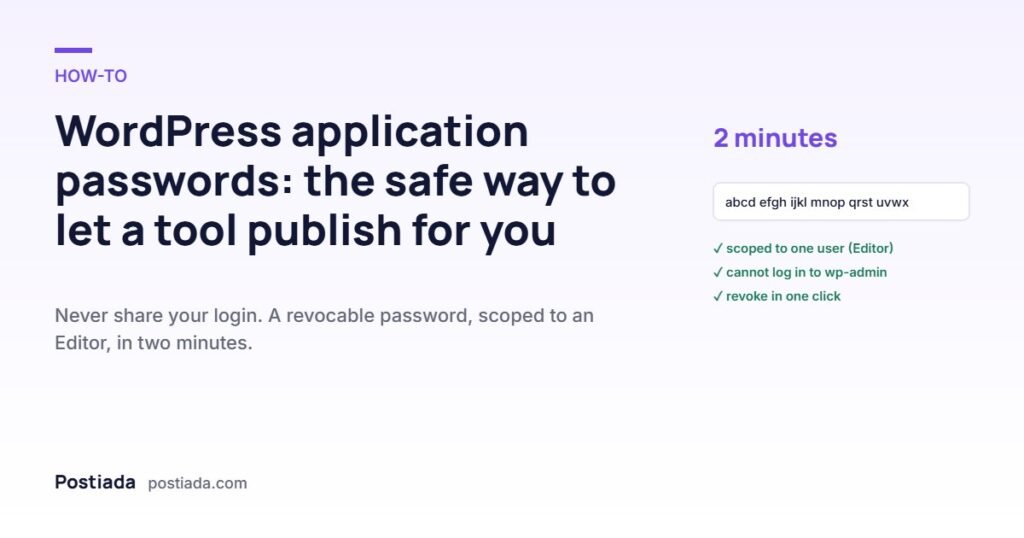
Any tool that publishes to your WordPress site needs a way in. The wrong way is your admin login. The right way is an application password: separate, scoped to a user, and revocable in one click.
What an application password is
Since WordPress 5.6, every user can generate additional passwords that work only for the REST API — the interface programs use — and never for the login screen. Each one has a name, a creation date, a last-used date, and a revoke button. You can have several, one per tool. Deleting one cuts off that tool and nothing else.
Compare that with sharing your real password: it opens the dashboard, it cannot be scoped, and changing it later means updating everything that used it. There is no good reason to hand it to a service in 2026.
Create one in two minutes
- Log in to WordPress and go to Users → Profile (or the profile of a dedicated user — see below).
- Scroll to Application Passwords. If the section is missing, your site is served over plain HTTP or a security plugin has disabled it; both are worth fixing regardless.
- Type a name you will recognise later — for example Postiada — and click Add New Application Password.
- Copy the password shown once. WordPress will not show it again. Paste it into the tool that needs it, together with the username.
Use a dedicated user with the right role
Rather than issuing the password from your own administrator account, create a user for the tool. For a publishing tool, the Editor role is the right level: it can create posts, upload media and assign categories, and it cannot install plugins, change themes or manage other users. Everything the tool publishes will show that user as the author unless the tool sets another — Postiada, for instance, reads your existing author during setup and publishes under it.
Revoke it whenever you like
Back in the same profile section, each application password has a Revoke button. Click it and the tool loses access immediately. Nothing else changes: your login, your other integrations and everything already published stay as they were. This is the property that makes application passwords safe to hand out — access you can take back without side effects.
What Postiada does with it
During setup, Postiada uses the application password to read your categories, author and sitemap, and later to publish articles, upload featured images and set the FAQ block. It never sees your login, never changes settings, and never touches content it did not create. Postiada stores the credential only in a secured configuration — it is never displayed in the workspace — and you can revoke it from your WordPress profile at any moment.
Frequently asked questions
Is an application password less secure than my normal password?
It is more secure for this purpose: it cannot log in to the dashboard, it is scoped to one user’s role, and it can be revoked independently.
Do I need HTTPS?
Yes. WordPress only offers application passwords over HTTPS, and you should not be running a site without it anyway.
Which role does Postiada need?
Editor. It publishes posts, uploads media and assigns categories; it does not need administrator rights.